Saved as you write
Keep the page behind your notes, ready to revisit offline.
 WebNotia

Look up a document, read an article, or follow a question. When you find something useful, keep it as a note.
Available for iPhone, iPad, and Mac

Enter a URL or search for an article you want to read: a research paper, a work reference, or a long read you saved for later.

 Magic Pen
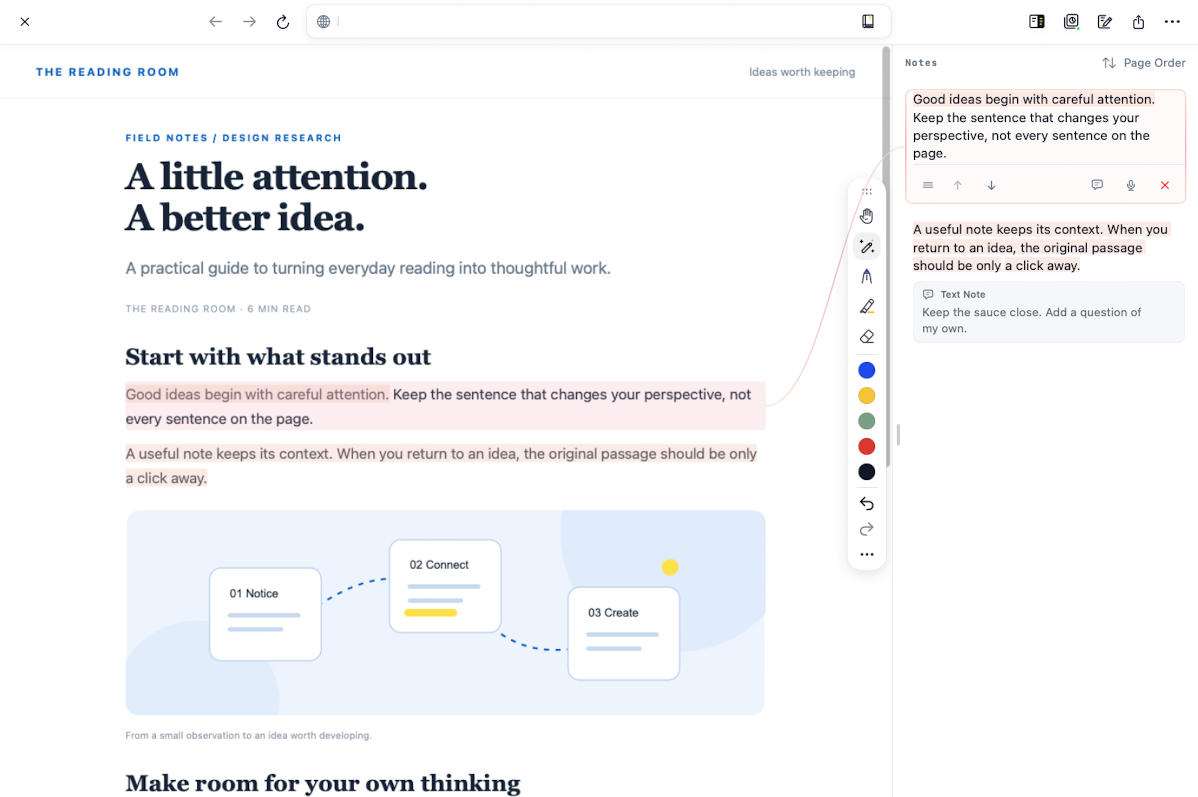
Underline a sentence to mark a point. Circle a passage to save it as a note. Try the two passages below and see what appears beside the page.
Open this guide in WebNotia to try marking these two passages.
Underline a sentence that makes you stop and think. Circle the whole passage when you want to keep its context, so you can find it easily next time.
Keep a useful idea from an article and add a thought of your own. When you return to your reading or gather your research, tap the note to revisit that passage.
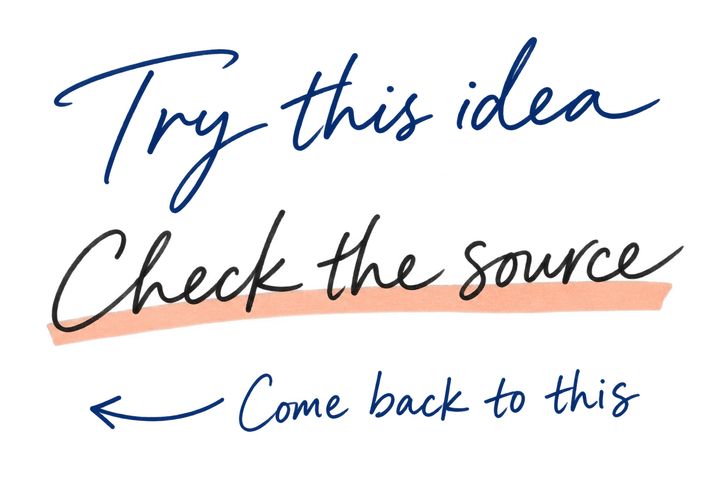
Worth thinking about. Find another article to compare this idea with.
 Pen
 Highlighter
Choose the pen to write or sketch beside the text, or the highlighter to mark a part to revisit. Use your finger, mouse, or stylus. Your strokes stay on the webpage just as you made them.
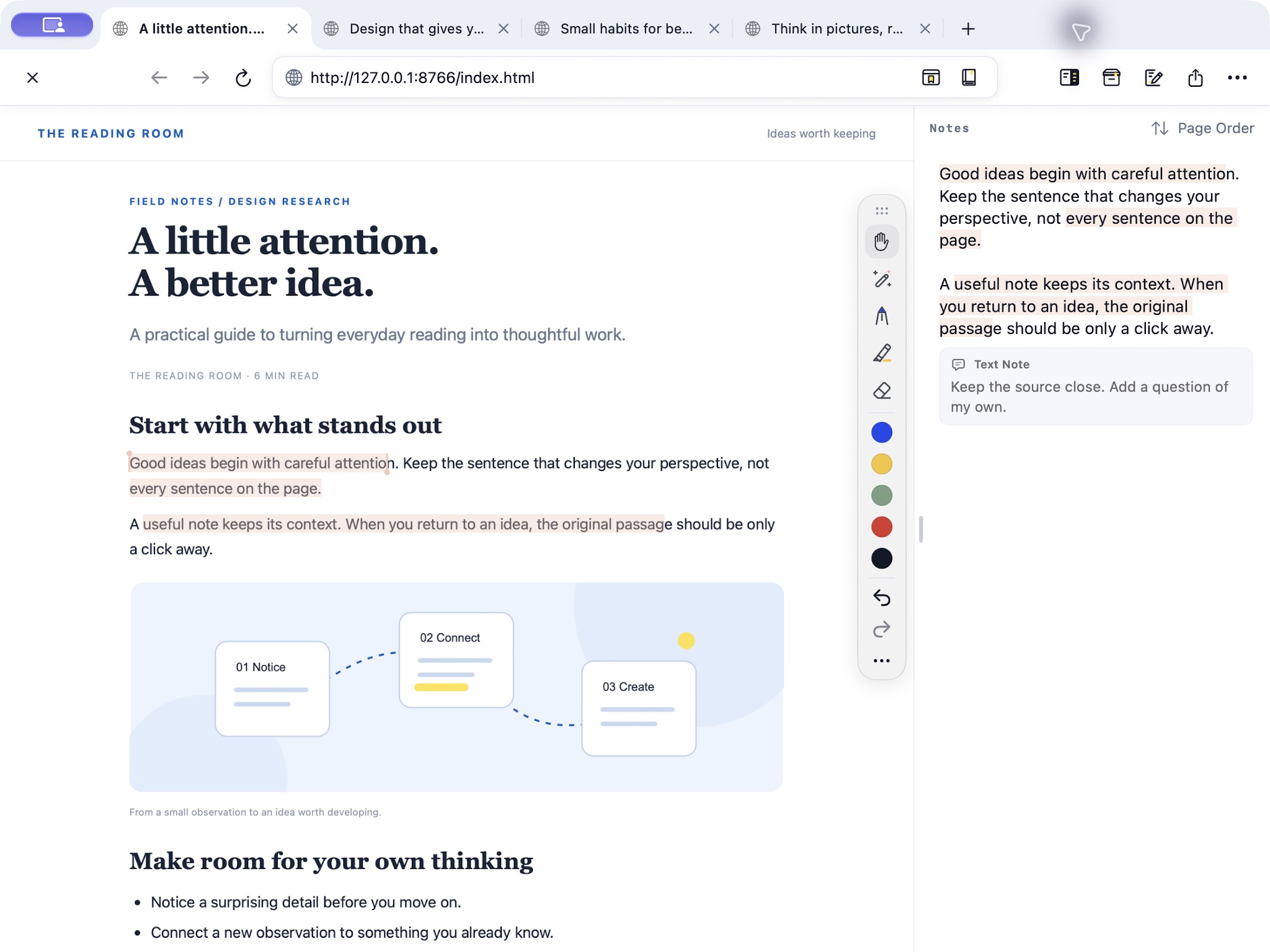
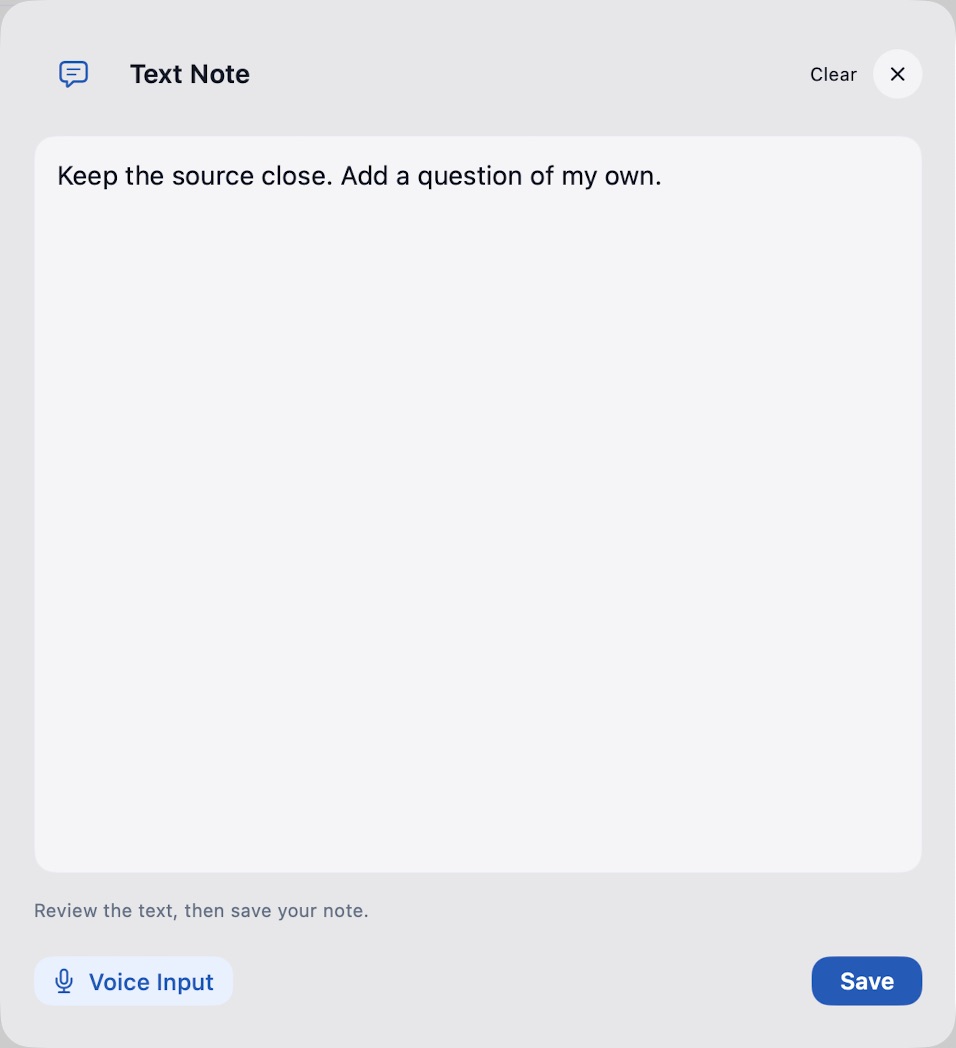
Tap a note on the right. Choose Text Note to type, or Voice Note to speak. Speech is saved as text. Tap the note again to return to its place in the source.

Save useful pages, organize them into collections, and search your notes. When you want to write or share, open Export and choose a format.
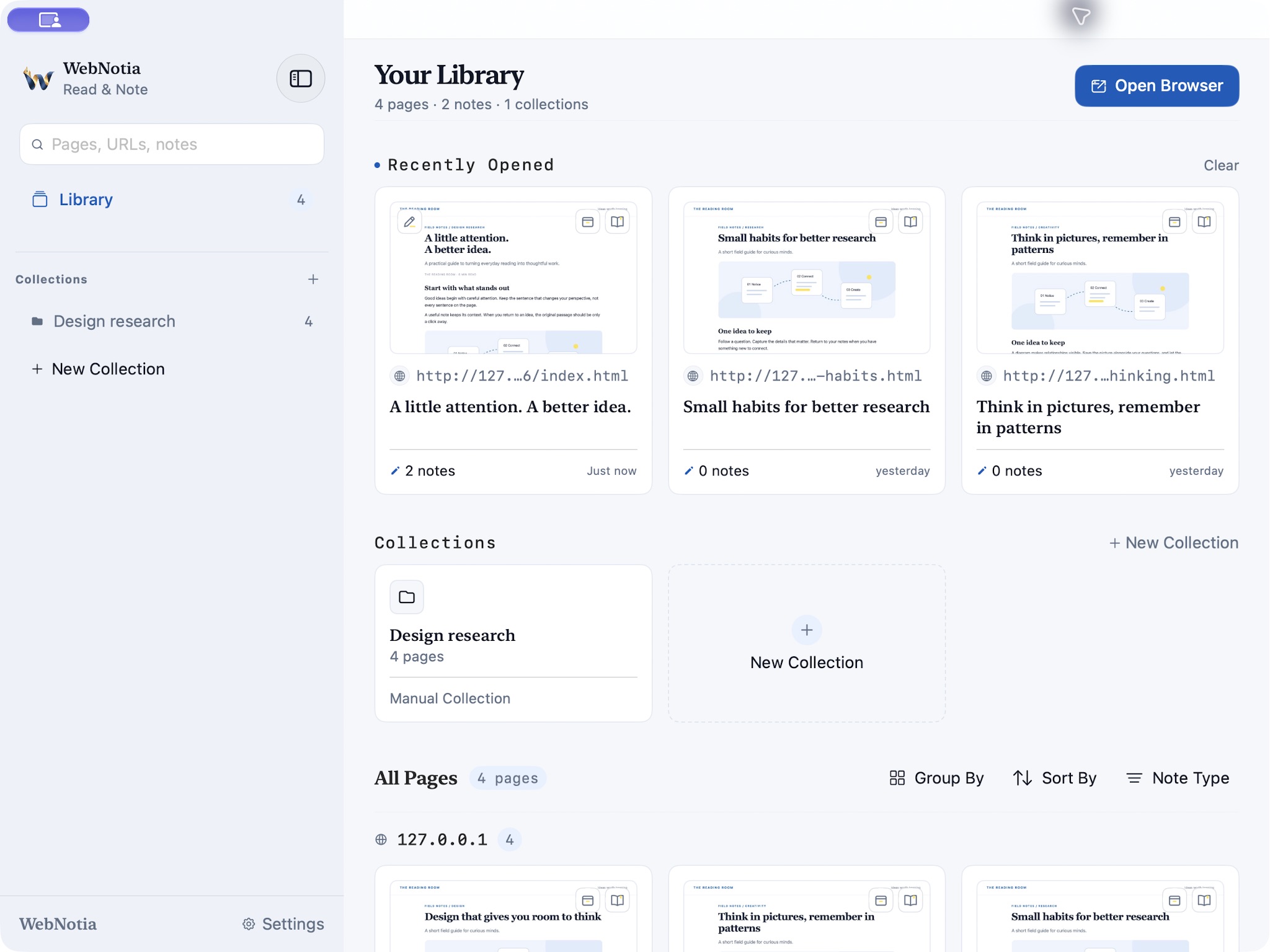
Notes as text, ready to keep editing.
Formatted notes you can open in a browser.
The page with note markings, ready to read or print.

When you start taking notes, the app automatically saves a copy of the page. If the website changes later, you can revisit that saved page alongside the notes made on it.
Keep the page behind your notes, ready to revisit offline.
When continuing on a changed page, bring your existing notes along or start a blank notebook.
Revisit your notes and their pages in Page Versions. The free plan keeps one archived version; Pro lets you keep multiple versions.
Write with your Pencil. Browse with your finger. Apple Pencil and Apple Pencil Pro shortcuts keep reading and note-taking flowing together.
Choose Apple Pencil Preferred. Once your Pencil is detected, use it to write and your finger to scroll, without switching tools.
On an iPad that supports hover, preview the color, size, and direction of your tool before it touches the page. Apple Pencil Pro also lets the tip preview follow its rotation.
Squeeze Apple Pencil Pro to open the arc toolbar near the tip. Change tools or colors, undo, or redo. Hover over a button to see which one you are targeting.
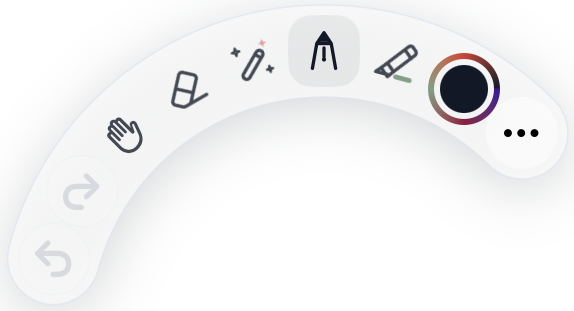
Hover, rotation, and squeeze depend on your iPad, Apple Pencil model, and system settings. Squeeze and rotating tip previews require Apple Pencil Pro.
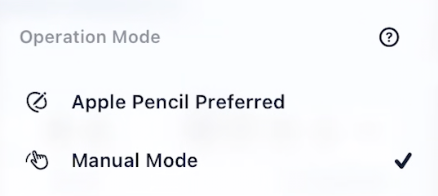
Use your finger or another stylus to draw on the page. In Manual Mode on iPad, the hand button makes it easy to switch between drawing and browsing.
On iPad, select Manual Mode to draw with your finger or a stylus. Hold the hand button and use another finger to scroll or tap. Release to return to your drawing tool.


Open versions to check save status and each notebook.


Switch between clean article text and the original page.


Choose the live page or a saved copy in Page Versions. Archived pages show a green address bar and save date.


Show handwriting, note highlights, or hide all marks.

Tap to show notes; dismiss them from the panel.


Open or close the notes panel beside the page.
New pages default to 768 px on iPhone and 1024 px on iPad and Mac. Choose another width in More → Page Width.
The width used for your first note is saved with the page. With iCloud sync enabled, other devices use it by default.
Choose the tool, color, and thickness in the toolbar. Undo or redo whenever you need.
Drag its dotted handle to dock it on the left, right, or bottom.
Drag the two highlight handles to adjust the selected text.
After circling, tap × on the selection frame to cancel that selection.
Unfold more room to read, with your page and notes together. Keep your thoughts flowing as you read.
Pro includes optional iCloud sync. Enable it in Settings to continue with your notes on your own devices.